Auto-Send Google Meet Links to Clients After Booking in GoHighLevel Calendar
If you’re running an agency or any service-based business, you already know how annoying it is to manually create Google Meet links every time someone books with you. Someone books, you create a link, you send it, they lose it, you resend it… It’s a mess.
Good news, GoHighLevel lets you fully automate this. Once it’s set up, every booking automatically generates a Google Meet link and sends it straight to your client. No manual work, no missed links.
Here’s exactly how to set it up.
Why Bother Automating Google Meet in GoHighLevel?
Because your time is worth more than copy-pasting links. When this is set up correctly:
- Clients get their Meet link the moment they book
- Reminders go out automatically with the link included
- Your calendar stays in sync so there’s no double booking
- You look professional without doing any extra work
It used to be tricky to set this up (Google Meet was only available in round-robin calendars for a while), but GoHighLevel has improved a lot. This guide walks you through the current way to do it.
Step 1: Set Up a Staff Profile in Your Sub-Account
First, you need a staff profile to connect to Google Meet. This is just how GoHighLevel handles the calendar-to-Google connection.
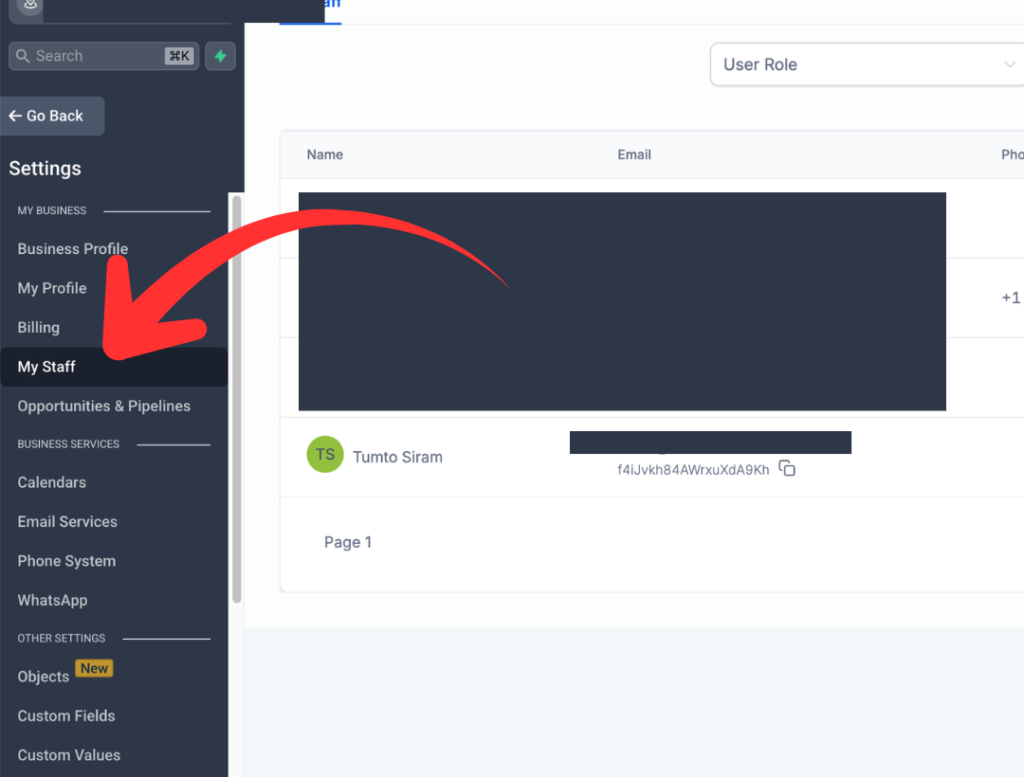
- Go to your Sub-Account Settings
- Head to the My Staff section and add a staff member (this can be you or anyone on your team)
- Fill in the email address and phone number — this is required for the Google Meet connection to work
Step 2: Connect Your Google Account
This is the most important step. You need to connect Google from the staff account, not your GoHighLevel admin account.
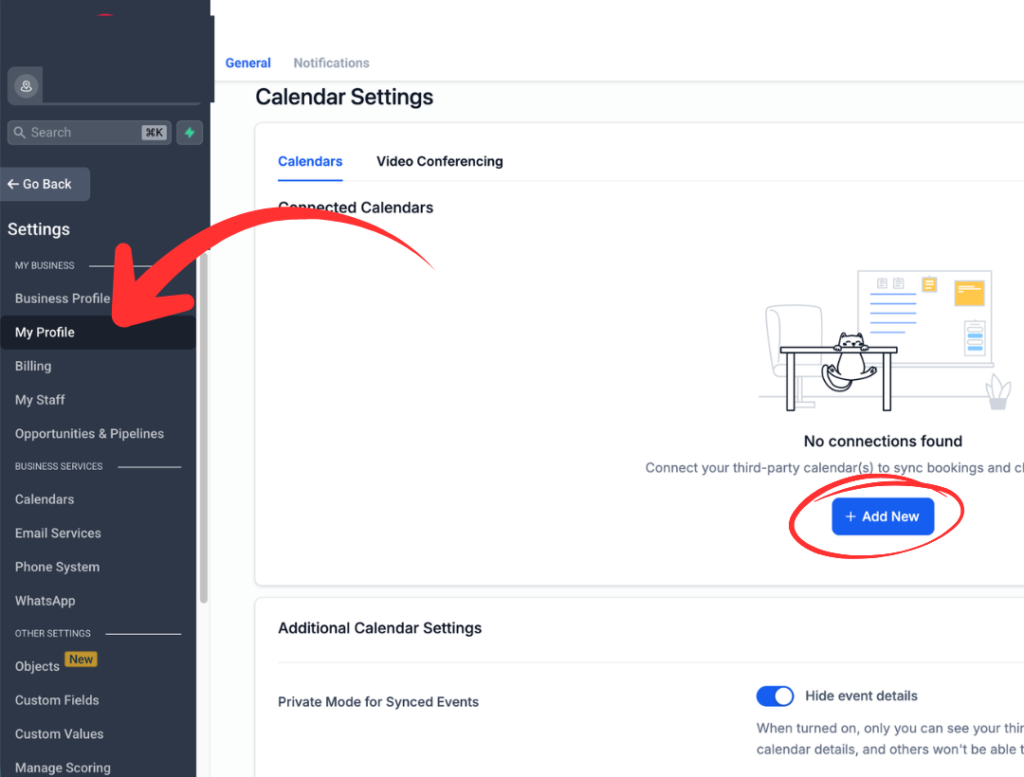
- Log in as the staff member you just created
- My profile and
- Go to the integrations section and connect their Google account
- This does two things: enables Google Meet link generation AND syncs with Google Calendar to prevent double bookings
- If you also use Zoom, you can connect that here too — totally optional
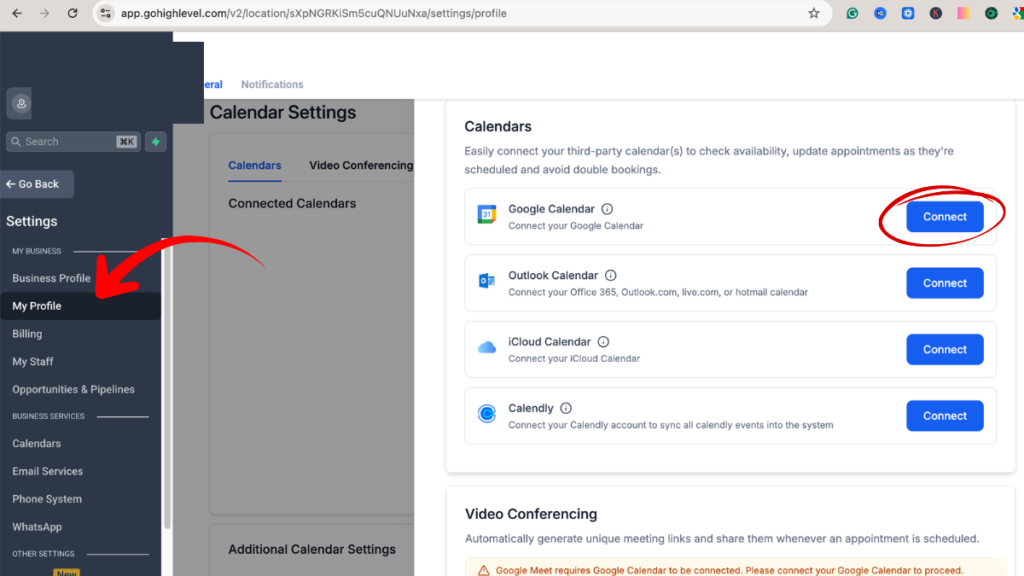
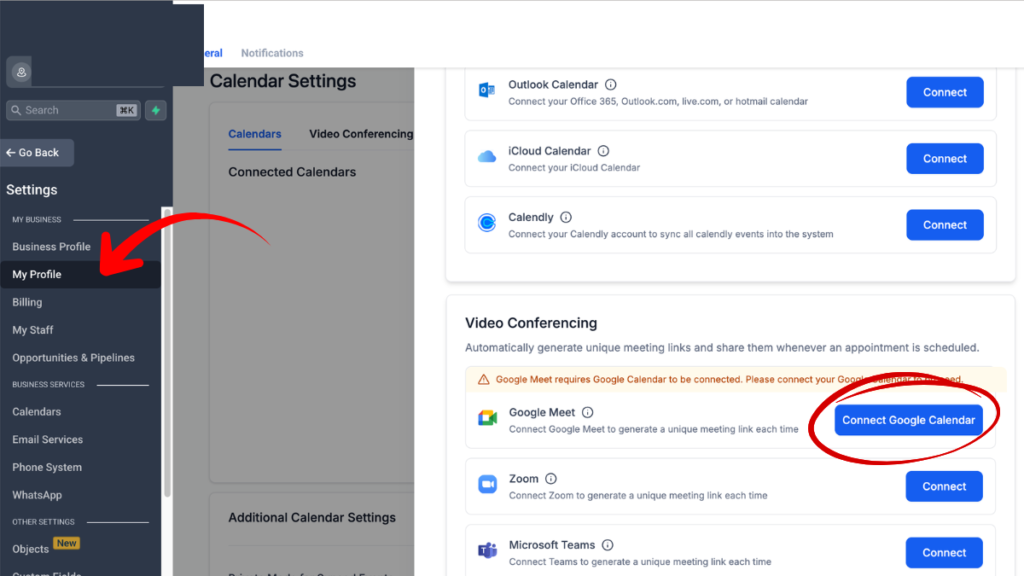
Once connected, go into the calendar settings and set Google Meet as your default meeting location.
Step 3: Set Up Your Calendar
Now configure the actual calendar your clients will book through.
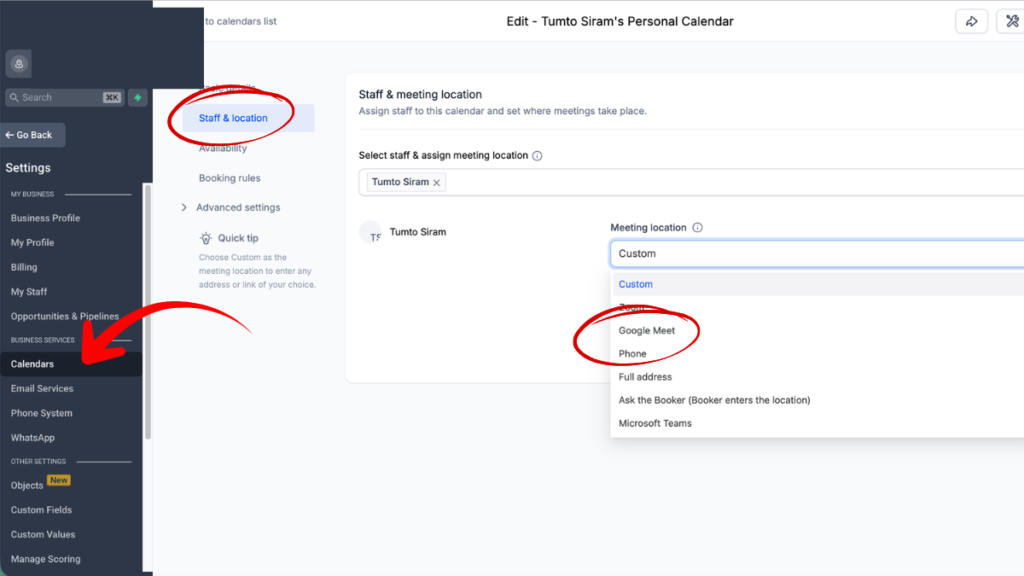
- In your calendar settings, select Google Meet as the location — this is now available on all calendar types, not just round-robin
- Set your working hours and availability
- Save your changes
That’s really it for the basic setup. At this point, any new booking will automatically generate a unique Google Meet link.
Watch the Full Tutorial on YouTube
See it in action before you set it up yourself — I walk through every click in the video above.
Step 4: Automate Confirmations and Reminders
Now let’s make sure your clients actually receive the Meet link after booking.
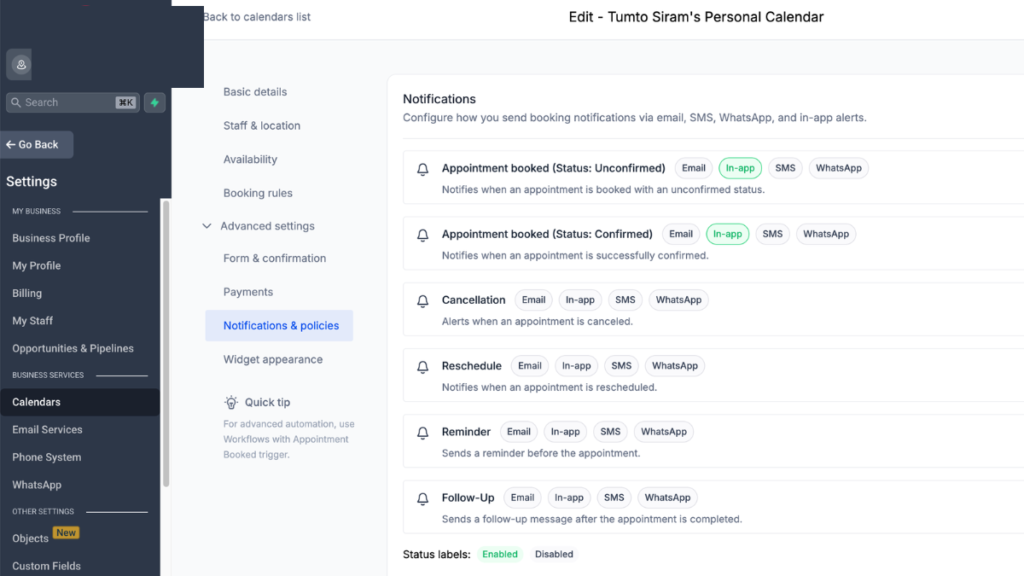
- In your calendar settings, turn on the built-in appointment confirmations and reminders
- Check the option to allow Google or Outlook to send invitations — this is what makes the Meet link show up directly in your client’s inbox
- If you want more control over the timing or the message style, you can build a Workflow for advanced customization (completely optional)
- Book a test appointment to make sure everything is working, and the link shows up correctly
Step 5: Add the Meet Link to Emails and SMS
If you’re sending your own confirmation emails or SMS reminders through GoHighLevel, you’ll want to pull in the Meet link using a custom value.
- In your Email or SMS builder, use the custom value {{appointment.location}}
- This automatically inserts the Google Meet link wherever you place it in the message
- Works for both confirmation emails and follow-up reminders
Your clients will get a clickable link every time — no confusion about where to go.
You’re Done — Everything’s Automated
Once this is live, the flow looks like this:
Client books → Meet link is generated → Client gets confirmation with the link → Reminders go out automatically → Client shows up to the call
Zero manual work on your end.
Want This Set Up for You?
If you’d rather have someone do this (and the rest of your GoHighLevel setup) properly the first time, I can help. I work with agencies and service businesses to set up and optimize their GoHighLevel systems so everything runs on autopilot.
Let’s talk about what you need and whether I’m the right fit to help.
More GoHighLevel Tutorials
If this helped, you’ll want to check out my other GoHighLevel guides. I post new tutorials regularly — subscribe on YouTube so you don’t miss them.